
Introduction:
Excel is a powerful tool for performing calculations, whether you’re tracking expenses, creating reports, or analyzing data. This guide will walk you through essential calculation techniques in Excel, both on desktop and mobile. By the end, you’ll know how to add, subtract, multiply, divide, and use simple functions in Excel. This makes it easy to manage data from anywhere!
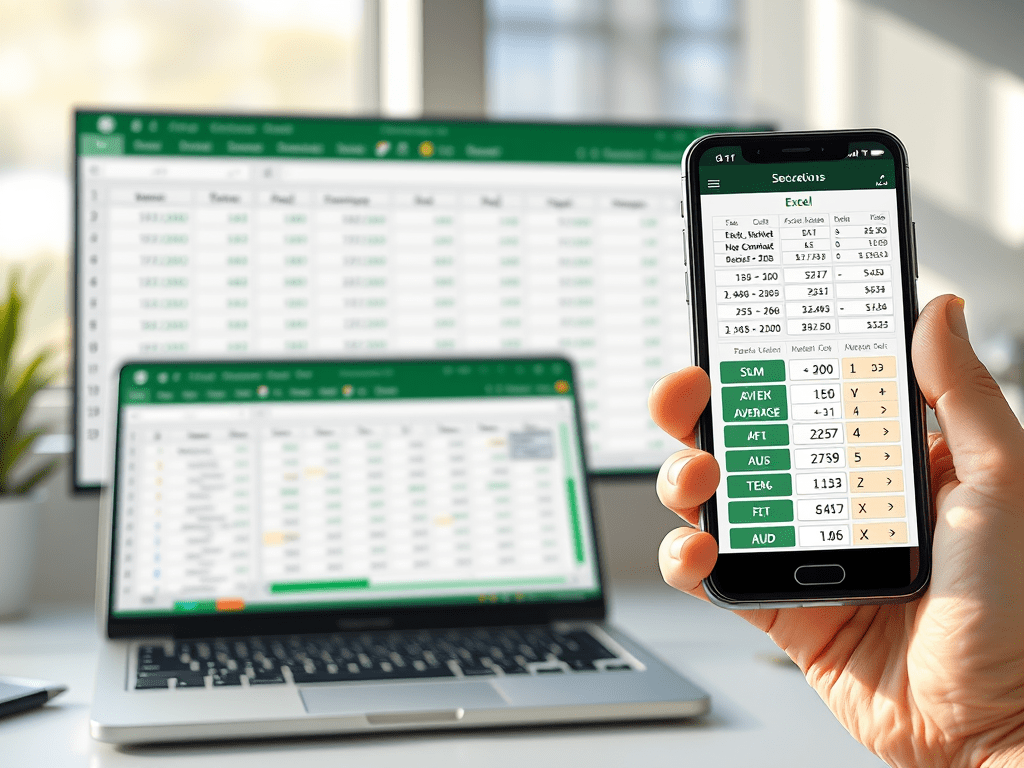
1. Setting Up Your Workbook
Desktop:
- Open Excel on your desktop and start a new workbook.
- Enter some sample data in the cells, such as sales, expenses, or any values to work with. Mobile App:
- Launch the Excel mobile app and create a new workbook.
- Input sample data, such as numbers or text, by tapping on cells and entering values with the on-screen keyboard.
2. Basic Calculations Using Formulas
Excel’s power lies in its ability to perform calculations using simple formulas. Let’s go over some essential calculations.
a. Addition (+)
- Desktop & Mobile: Click (or tap) on a cell where you want the result.
- Type
=SUM(A1:A5)to add up values in cells A1 to A5. PressEnterto get the total. - Alternatively, use
=A1 + A2if you want to add specific cells only.
b. Subtraction (-)
- Type
=A1 - B1to subtract the value in cell B1 from A1. - Press
Enterto see the result. This method works the same on desktop and mobile.
c. Multiplication (*)
- Type
=A1 * B1to multiply the values of two cells. - Press
Enterto view the result. You can repeat this for any pair of cells.
d. Division (/)
- Use
=A1 / B1to divide the value in cell A1 by B1. - This is handy for calculating averages or rates.
3. Using Common Functions
Excel has built-in functions that simplify calculations:
a. Average Function
- Use
=AVERAGE(A1:A5)to calculate the average of a range of values. - This works on both desktop and mobile; just select the cell range you want to average.
b. Min and Max Functions
=MIN(A1:A5)finds the smallest number, while=MAX(A1:A5)finds the largest.- These are useful for analyzing data quickly on both desktop and mobile.
c. Count Function
- Type
=COUNT(A1:A5)to count the number of cells with numbers in a range. - Use
=COUNTA(A1:A5)to count cells that contain any kind of data.
4. Auto Sum for Quick Calculations
Desktop:
- Use the AutoSum button (usually on the toolbar) to automatically sum a column or row of numbers.
- Highlight your range, click on AutoSum, and Excel will insert the formula for you. Mobile:
- Tap on the cell below or to the side of the numbers you want to add.
- Select the “fx” button, find SUM, and Excel will suggest the range.
5. Copying Formulas Across Cells
Desktop: Drag the fill handle. It is a small square at the bottom right of a selected cell. Move it across rows or columns. This action applies the same formula to multiple cells.
Mobile: Select the cell with the formula. Look for the fill handle or copy-paste option. Use these to replicate the formula in other cells.
6. Quick Tips for Efficient Calculations
- Use Keyboard Shortcuts: On the desktop app, use shortcuts like
Ctrl + Cfor copying. UseCtrl + Vfor pasting. These shortcuts speed up tasks. - Formula Suggestions: Both desktop and mobile apps suggest formulas based on your data and calculation needs.
- Save Your Work: Frequently save or enable auto-save, especially on mobile, to avoid losing any work.
7. Practice Activity
- Enter values in cells A1 to A5 and try each calculation technique.
- Check your results and practice modifying formulas to reinforce your skills.
Conclusion:
Learning these basics equips you with valuable skills to perform calculations on both Excel desktop and mobile apps. You can manage expenses on the go or analyze data at your desk. Excel’s flexibility and power make it an essential tool for your productivity.
 LK Techs
Leave a Reply