

Hello Students..
You cannot log in to Microsoft Power Platform components using personal email IDs. This includes Power BI, Power Apps, Power Pages, Power Automate, and Power Co-Pilot. To effectively learn and explore these features, you will need access through a Work or School account.
If you do not have a Work or School account, I recommend checking with your educational institution to provide it. I understand that many schools and colleges may not provide institutional email IDs to students.
Do not worry if you do not understand. I will guide you step by step on how to get an ID in this blog. Let’s start…
Before starting the ID creation work, will learn about how to use Microsoft Free Azure Credits
What Are Azure Free Credits?
Microsoft Azure offers new users a free account that includes $200 in credits for the first 30 days. These credits can be used to explore and try out various Azure services.
Access to Free Services: Besides the initial credits, Microsoft lets users access a limited number of free services. This access lasts for 12 months. These services include specific Azure resources, tools, and capabilities.
Usage: Users can utilize these credits to experiment with a wide range of Azure services. These services include Virtual Machines, App Services, Azure Functions, and more. This experimentation can enhance your learning and development experience.
Creating an Azure Tenant: Sign up for the free Azure account. This action allows you to create a tenant in Azure Active Directory (Azure AD). The tenant is essential for accessing Microsoft services, including Power Platform components.
Eligibility: The free Azure credits are typically available to new users who haven’t previously signed up for an Azure account.
Expiration: The $200 credits must be used within the first 30 days of signing up. After that period, you can still use free services available for 12 months. However, if you want to use paid services, you’ll need to switch to a pay-as-you-go model.
Learning and Development: The free Azure credits provide an excellent opportunity for students and developers. They can learn about cloud computing, test applications, and gain practical experience with Microsoft technologies.
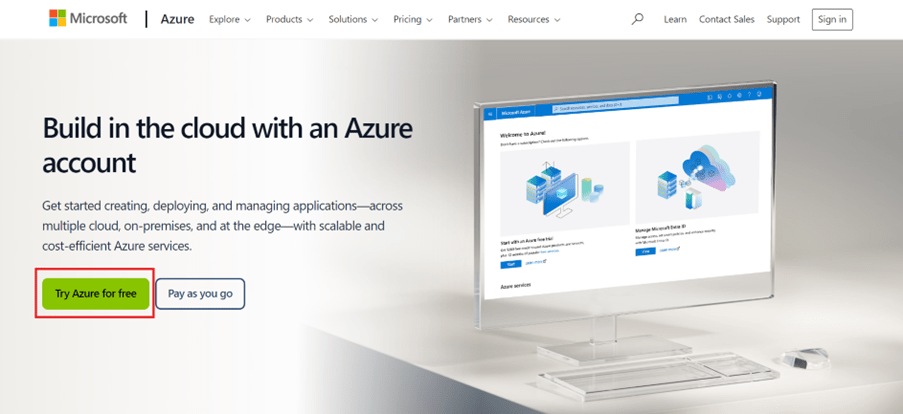
How to sign up to Microsoft Azure Credits. Click Try Azure for free.
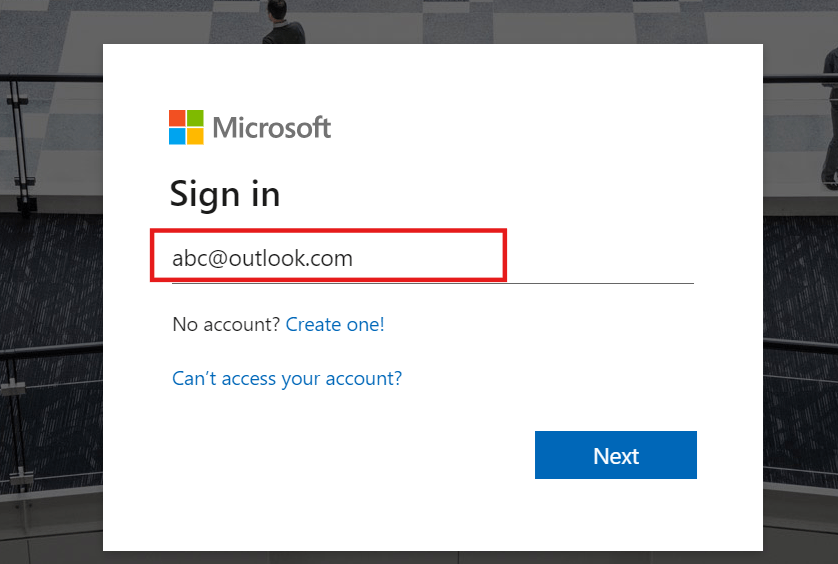
Sign In use your personal outlook email Id.
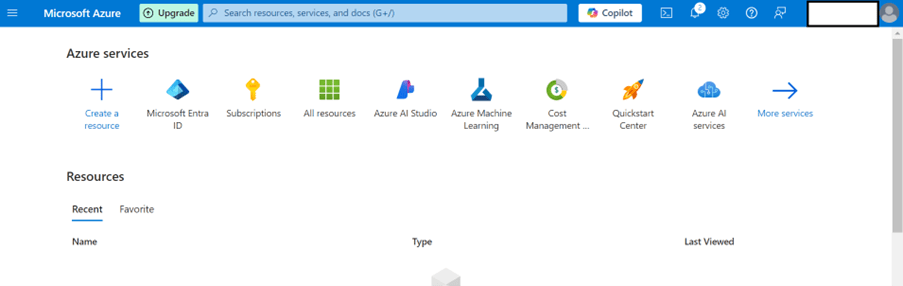
Once sign in, you will get the Azure Home Screen
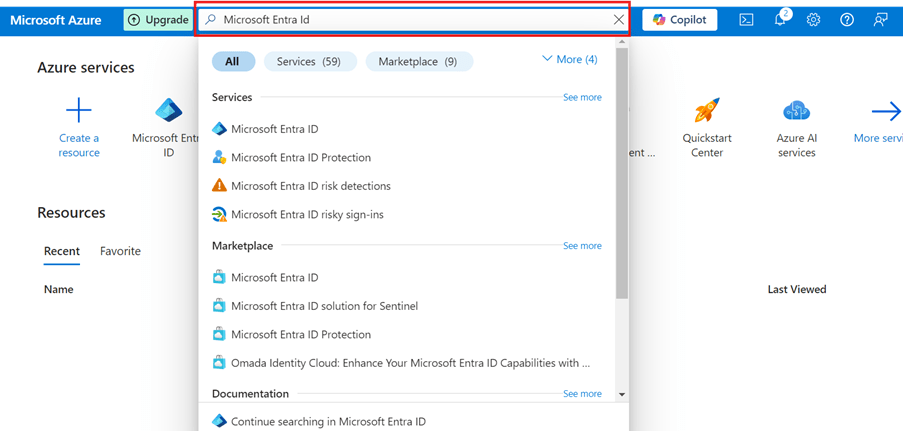
Once you Signed in, Search Microsoft Entra ID.
Select Add -> User ->Create New User
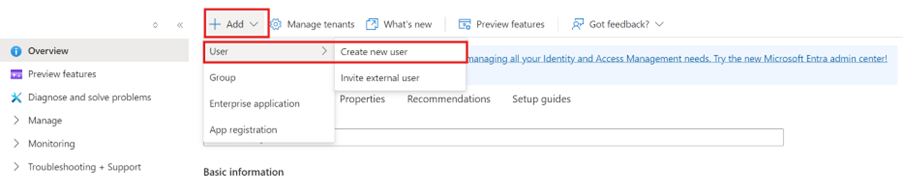
Create New User Details, Give a name as per requirement and select the available listed domain. (my domain hided)
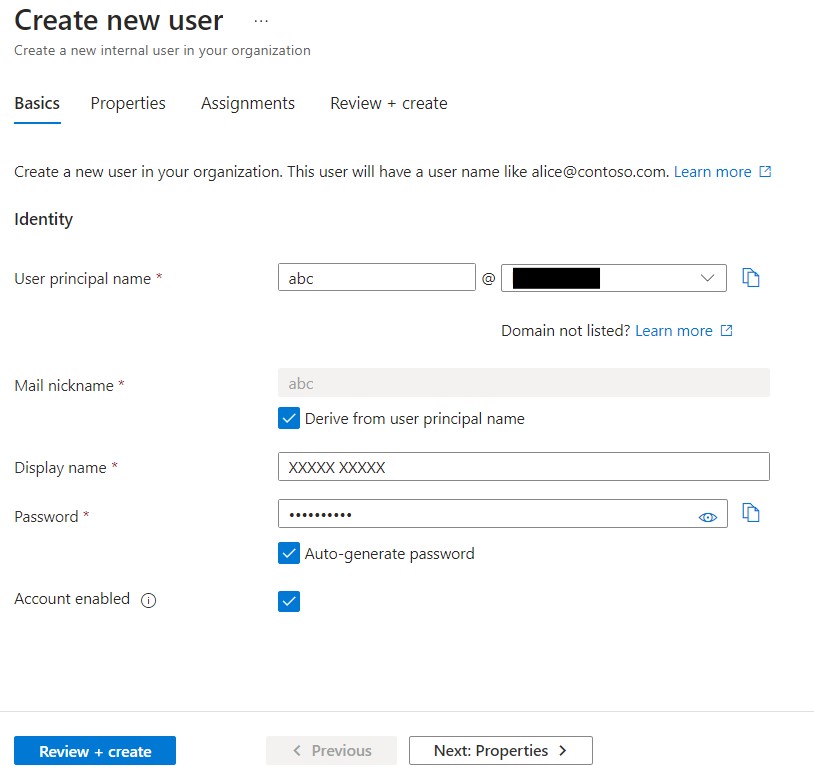
Next: Properties – Add your personal information, and any example company name and employee details, contact information and usage location in India. Then Select ” NEXT ASSIGNMENTS “.
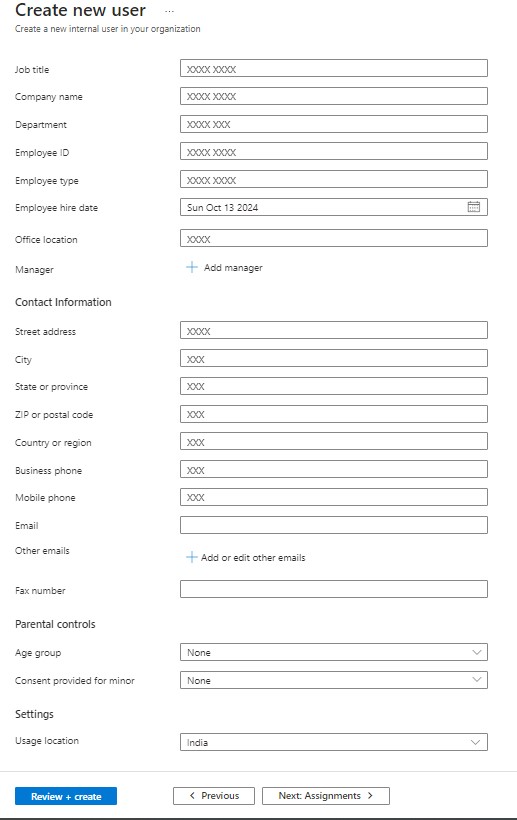
Add a new role as Global Administrator. A Global Administrator role in Microsoft 365 has full permissions to develop and manage all Power Platform components, including Power Apps, Power Automate, Power BI, Power Pages, and Power Co-Pilot, allowing them to create, manage, and publish applications, automate processes, generate reports, build websites, and enhance productivity and collaboration across the organization
Add User ->Search Global-> Select check box Global Administrator -> then Select

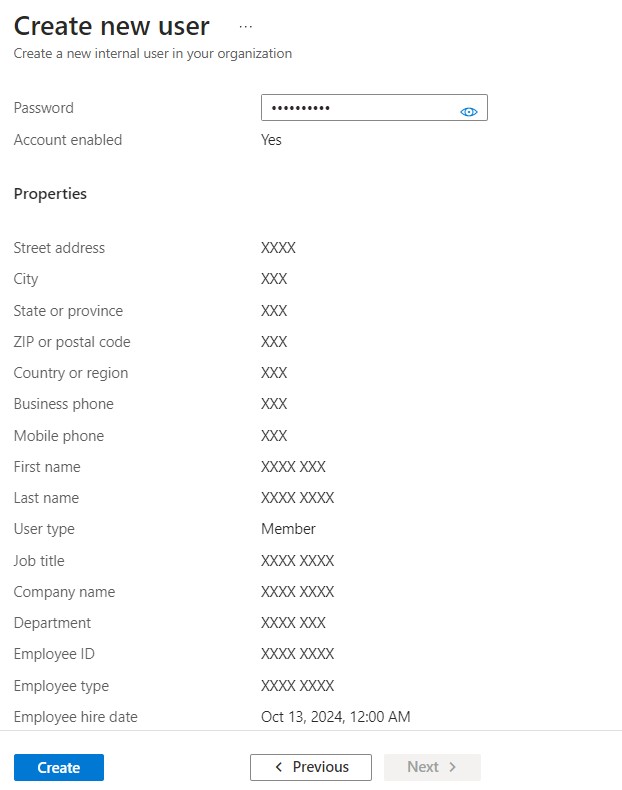
Review & Select Create button to create new user Id.
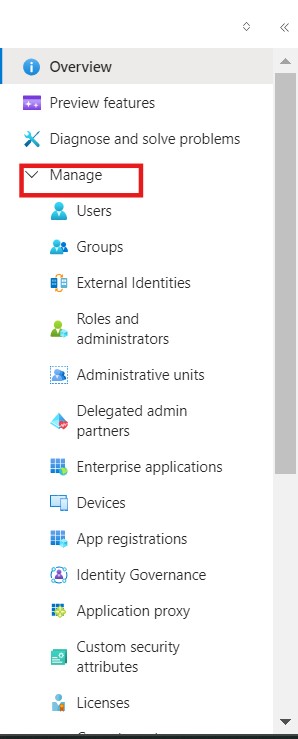
After Creating User Id -> Go to Overview -> Select Manage -> User to take your user id.
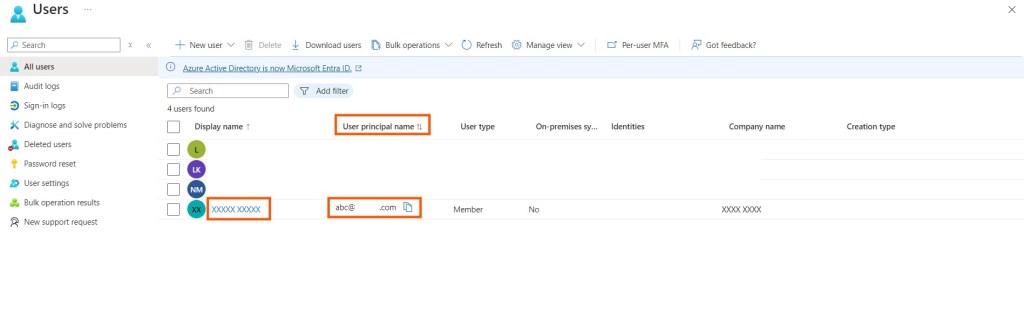
On Users page, you can get your ID under User Principal name and you can manage users in this page.
Now, students, this ID enables you to learn and explore Microsoft Power Platform components. It also allows you to access Azure premium services until your free credits are exhausted. You can take advantage of free services for the first year from the date of account creation.
Don’t wait—take the initiative now to equip yourself for a brighter career and future.
 LK Techs
Leave a Reply